Biometric Attendance Systems: Fingerprint vs Face vs Card
How to choose a biometric attendance device for your office: fingerprint, face or card, what to check before buying, and how punches turn into payroll.
By the Mecverse team · 7 Oct 2026 · 6 min read
Key takeaways
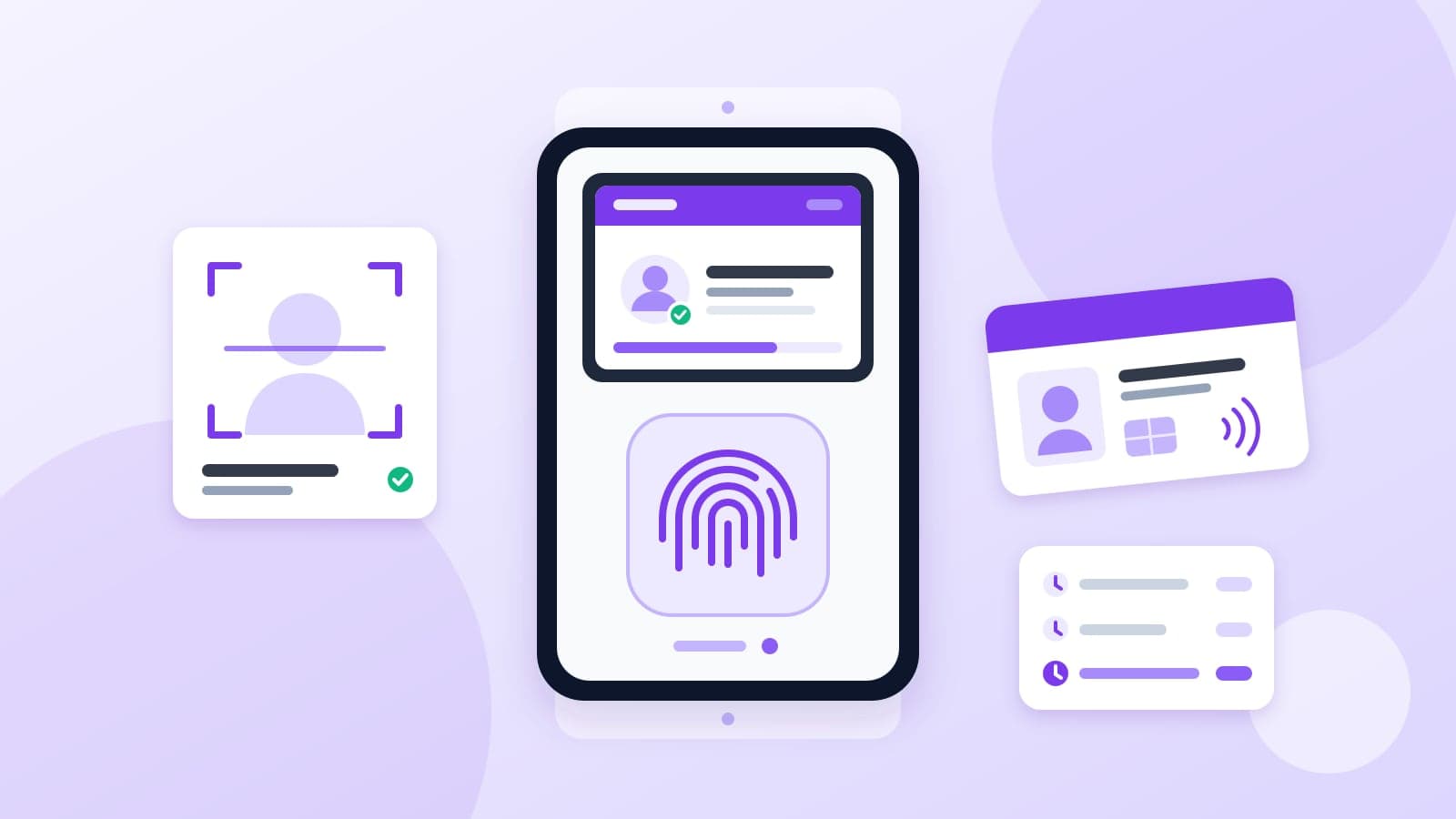
- Fingerprint devices are cheaper and quick to enrol. Face devices are touchless and handle crowds at shift change better. A card backup covers the people neither works for.
- Choose based on headcount, shift pattern and site conditions, and survey the entry points before you buy.
- Check offline log storage, user capacity and export compatibility with your payroll process before price.
- The device is the easy part. The value is in turning raw punches into a payroll-ready register without manual Excel work.
The real problem a biometric device solves
On the 28th of every month, someone in a 40-person office opens a register, a few WhatsApp messages and an Excel sheet, and tries to work out who was late, who left early and who claimed overtime. It takes a day or two. Mistakes go into payroll, and arguments follow.
A biometric attendance system fixes the capture side of that problem. Each employee punches in with a fingerprint, face or card, and the device records who arrived and when. Nobody signs for a colleague, and nobody has to remember a time from three weeks ago.
But capture is only half the job. If the device logs end up exported to a spreadsheet and reconciled by hand, you have moved the problem rather than solved it. This guide covers both halves: picking the right device, and making sure its data flows into payroll.
Fingerprint vs face vs card: which one fits your site
There are three common ways to identify an employee at the device. Each has a place.
| Factor | Fingerprint | Face recognition | Card (RFID) |
|---|---|---|---|
| Device cost | Lowest | Higher per device | Low, plus the cost of cards |
| Enrolment | Fast | Fast, needs good lighting | Issue a card |
| Touchless | No | Yes | Yes (tap or hover) |
| Throughput at shift change | Good for small teams | Better for high headcount | Fast |
| Proxy punching | Hard | Hard | Easy: cards can be shared |
| Struggles with | Worn, cut, wet or dirty fingers; gloves | Harsh backlight or direct sun at the entry point | Lost or forgotten cards |
Fingerprint
The default for most small offices. A single-shift CA firm or software office, where people arrive over a 30-minute window with clean, dry hands, is the ideal case. Fingerprint readers are cheaper and enrolment takes minutes. They work less well for staff doing manual work, where worn or injured fingers fail to read.
Face recognition
Touchless, which matters at clinics and other hygiene-sensitive sites. It also handles a queue better: if 150 people clock in at the same shift change, a few seconds saved per person adds up. Placement matters more than with fingerprint. A device facing a glass door with the afternoon sun behind the person can struggle.
Card, on its own or as a backup
A card alone doesn't prove who is standing at the device, so it does nothing about buddy punching. Its real value is as a fallback on a hybrid device: the employee with a bandaged finger or work gloves can still punch in, so attendance never blocks on one method.
What to check before you buy
Two devices with the same photo on the box can behave very differently once installed. Ask about each of these.
- User and log capacity. How many fingerprints, faces or cards can it store, and how many punches before old logs are overwritten? Leave room for hiring.
- Offline storage. The device should keep logs locally and sync when the network returns. A router restart should never mean a lost morning of attendance.
- Connectivity. Ethernet, Wi-Fi or both. Check there is a network point and a power socket where the device will be mounted.
- Power backup. If your building has frequent power cuts, ask whether the device has a battery or can run from a UPS.
- Data export and compatibility. How do logs leave the device? Ask which attendance or payroll software it works with, and in what format. This is the question buyers most often skip.
- Placement and mounting. Indoor vs outdoor, height, lighting, and whether one entry point or several need devices.
- Local support. Who installs it, who enrols employees, and who fixes it when it stops syncing?
How attendance data connects to payroll
A biometric device produces a list of raw punches: an employee ID and a timestamp. Payroll needs something different: days present, late marks, half-days, overtime hours and leave. The work in between is where most offices lose time.
- Capture. Employees punch in and out. The device stores each punch.
- Collect. Logs move from the device to software, ideally automatically over the network rather than by USB stick.
- Apply rules. Shift timings, grace periods, half-day thresholds, weekly offs, holidays and approved leave turn raw punches into attendance status.
- Review exceptions. Missed punches, duplicate punches and odd patterns get checked by HR before the month closes.
- Export. A monthly register goes to payroll in a format it can read.
If steps 2 to 5 happen in Excel, the device has saved you less time than you think. When comparing systems, ask the vendor to show you the path from a punch on the device to the file your payroll person actually uses.
Write your rules down before go-live
Software can only apply rules you have decided. Before the system goes live, agree on the answers to a few questions and write them down: What time does each shift start, and how many minutes of grace do people get? How many late marks make a half-day? Does overtime start after a fixed number of hours, or only when approved? What happens when someone forgets to punch out? Offices that skip this step end up overriding the system by hand every month, which defeats the point.
Where WorkClave fits
When Mecverse installs attendance devices, the device logs are piped into WorkClave, our attendance verification and analytics product, so attendance data flows into reports without manual export. WorkClave generates payroll-ready exports for attendance reconciliation and keeps audit trails for review. It is currently available through pilot access, with public documentation and walkthroughs handled with our team.
What a proper installation looks like
A device screwed to the wall is not an attendance system. A good installation has four steps, and you should expect your vendor to cover all of them.
- Site survey. Check power points, network access, and every entry and exit point, then decide device count and placement.
- Installation and wiring. Mount the devices and connect them to your network or a standalone controller.
- Enrolment. Enrol every employee on-site, with a backup method for anyone whose fingerprint or face doesn't read reliably.
- Software connection. Confirm that punches appear in the reporting software the same day, before the vendor leaves.
This is how our attendance systems service works. A single-location office with under 50 employees is typically installed and enrolled within a day, and multi-location rollouts are scheduled site by site.
A quick decision guide
Use this to narrow down the choice before you ask for quotes.
- Single shift, under 50 people, office work: fingerprint is usually enough. Add card backup if anyone has trouble reading.
- Clinic, lab or any hygiene-sensitive site: face recognition.
- Large headcount arriving at one shift change: face recognition, possibly more than one device at the main entrance.
- Manual work, gloves, frequent hand injuries: a hybrid device with card backup, or face.
- Multiple branches: devices that sync to central software over the network, so HR sees every location in one place.
Then, before signing:
- Confirm offline log storage and the export path to payroll.
- Ask for a site survey, not a quote over the phone.
- Get enrolment and the software connection included in the installation.
- Write a short notice for employees explaining what biometric data you collect and why.
Frequently asked questions
Book a site survey
Tell us your headcount and number of sites. We recommend devices and placement, then install, enrol and connect them.
Keep reading

Attendance
Best attendance software in 2027
Attendance software is the system that can answer, a week later, who was present, for which session, and whether anyone changed the row. A daily tick in a sheet answers that until
12 Oct 2026 · 8 min read
Attendance
Remote Attendance Tracking: Records, Approvals and Payroll Export
How remote and hybrid teams can keep attendance records payroll can trust: a session-based record, written policy rules, exception-only approvals and a clean export.
7 Oct 2026 · 6 min read
Attendance
Best payroll software in 2027
People searching for payroll software usually want three things: the month’s payable days, the deductions, and a payslip that will not be argued about on WhatsApp. The second and t
16 Sept 2026 · 8 min read